PDF Merger Tool – Combine PDF Files in Seconds
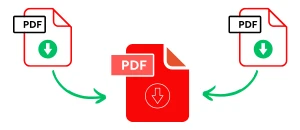
Managing documents becomes easier when you keep everything in one place. A PDF merger tool helps you join many files into one neat document without effort. Instead of sending five different files, you can now merge documents into one PDF file and share it as a single, clean package.
Today, many people look for quick tools that work in the browser. A good free online PDF merge files service lets you select your pages, arrange them in order, and download the result right away. It is fast, safe, and simple to use.
If you only need to join two files, the process is even faster. You can merge two PDF files into one online free in less than a minute. For larger projects, you can merge multiple files into PDF online free with the same ease.
How to Merge PDF Files Into One PDF File Online for Free?
Merging PDF files online is quick and does not cost anything. You only need a browser and internet. Here’s how you can do it:
Open a free PDF merger tool – Search for a trusted site that offers a merge PDF files into one online free option.
Select your files – Click the “Choose File” button or drag and drop your PDF files into the tool.
Select the pages – Most tools let you change the order. Drag the files or pages until they look right.
Click Merge – Press the merge button to start the process.
Download the file – Once done, save your new single PDF on your device.
Why Use an Online Merger?
No need to install software.
Works on computers, tablets, and phones.
Fast and free.
With these steps, you can merge PDF files into one file online free in just a few seconds.
How to Use the PDF Merger Tool? Biginner Guide Step by Step:
Step 1. Select PDFs Files
Drag and drop your PDF files into the dashed green box, or click inside it to select files from your device.
The tool supports multiple PDF files at once.
Each PDF file shows its name, page count, and a small preview of its pages.
Step 2. Select Pages
For each Selected PDF, you will see small thumbnails of all pages.
Use the checkboxes under each thumbnail to select pages you want to merge.
Click Select All in a PDF block to quickly select or deselect all pages from that file.
To remove an entire PDF, click the Close button next to its title.
Step 3. Preview Pages
Click on any page thumbnail to open it in the preview modal.
Inside the modal, you can:
Zoom in/out with your mouse scroll wheel or pinch on touch devices.
Drag the page around with your mouse or finger for better viewing.
Close preview by clicking the Close button in the top-right corner.
Step 4. Reorder Selected Pages
All selected pages appear in the “Selected Pages” bar below.
You can drag and drop thumbnails to rearrange the order.
Each page also has a Close button to remove it from the selection.
Step 5. Manage Selections
Deselect All button clears all selected pages at once.
Checkboxes in each PDF block also update automatically when you toggle selections.
Step 6. Merge PDF Free & Download
Click Download Merged PDF to combine the selected pages into one file.
A progress bar will appear showing the download progress.
Once done, your browser will automatically download the new PDF named Merged.pdf.
Progress Bar Guide
The progress bar appears only when needed:
During file loading: shows how many PDFs have been processed.
During merging: shows how many pages are being copied.
Once the process finishes, the progress bar automatically hides.
Why Use a PDF Merger Tool?
When you deal with work papers, study notes, or scanned receipts, keeping them in separate files can be messy. By using a merger, you:
Save time by joining all pages together.
Keep your documents in the right order.
Avoid confusion when sharing files with others.
With a few clicks, you can merge PDF files into one file online for free without installing any heavy software.
Key Benefits of Online PDF Merger Tools
No cost: Most tools allow you to merge PDF files into one online free with no hidden charges.
No signup: You don’t need to create an account to get started.
Any device: Whether you are on a laptop, tablet, or phone, you can merge files into PDF online free from anywhere.
Combine PDF: You can combile pdf files free or combine two pdfs into one.
Other Features:
Remove Pages
You can remove unwanted pages from any Added PDF before merging.
Each page preview has a close button for quick removal.
This helps create a clean, customized merged PDF without extra pages.
Rearrange Pages
After selecting pages, they appear in the “Selected Pages” preview area.
You can drag and drop pages to change their order.
The final merged PDF will keep the exact order you arranged.
Page Preview with Zoom & Pan
Click on any page thumbnail to open it in a full preview modal.
Use your mouse wheel (or two-finger pinch on mobile) to zoom in and out.
Drag with the mouse (or finger on mobile) to pan around the page.
This ensures you can review content clearly before merging.
Multiple File Support
Upload and merge multiple PDFs at once.
Select pages across different PDFs and combine them into a single document.
Select All / Deselect All
Quickly select all pages from a PDF with one click.
Or use the “Deselect All” button to clear all selected pages instantly.
Progress Feedback
Loading Progress Bar: Shows while PDF pages are loading.
Merging Progress Bar: Shows while the selected pages are being combined.
Keeps the user informed at every step.
Mobile-Friendly
Works smoothly on desktop, tablet, and mobile.
Supports touch gestures for zooming, panning, and reordering.
Final Thoughts
If you want a quick way to join pages, a PDF merge file online free tool is the answer. It removes the stress of handling many files and helps you stay organized. Whether you want to merge documents into one PDF file for school, work, or personal use, these tools make it easy.
FAQs
How do I merge two documents?
Follow these Steps:
Select your first PDF file.
Add your second PDF file.
Both files will appear with their page previews.
Select the pages you want from each file.
Drag and drop the pages into the right order.
Press Download Merged PDF to get a single combined document.
What is the best PDF merge software?
The best solution depends on your needs:
If you want free and fast pdf merging online, use this PDF Merger Tool (no downloads or sign-ups needed).
If you prefer offline software, Adobe Acrobat and PDFsam are popular.
For mobile users, apps like SmallPDF or iLovePDF are good, but most limit free features.
Our tool stands out because it’s free, unlimited, browser-based, and supports removing, reordering, and previewing pages before merging.
Can I remove pages before merging?
Yes’ You can remove pages Follow (Step-by-Step):
Load your PDF files in the tool.
Select all pages, it shows all the pages in the selected pages preview.
In the preview, click the Close button under the page you want to remove.
The page will be removed from the selection.
Continue selecting and reordering the remaining pages.
Click “Merge and download” button, it will download your selected pages only.
How do I rearrange PDF pages before merging?
Follow (Step-by-Step):
Upload your PDF files.
Select the pages you want to include.
Scroll down to the “Selected Pages” preview.
Click and hold any page, then drag it to a new position.
Release to drop it in place.
Merge and download with your custom order.
Does this tool work on mobile?
Yes You can use it on:
Desktop: Windows, Mac, Linux
Tablet: iPad, Android tablets
Mobile: iPhone, Android smartphones
Simply open the tool in your browser, Choose files, and follow the same steps mentioned above.
How many files can I merge at once?
You can upload and merge multiple PDFs at the same time. The only limit depends on your browser’s memory and processing power. For most users, combining 10–20 PDFs works smoothly.
Disclaimer
Our PDF Merger Tool works in your browser and does not save your files. We aim to keep it safe and reliable, but we cannot promise it will always be perfect. Please check your merged files before using them. We are not responsible for any errors, data loss, or issues caused by the tool.